
Filtered Group Picker FAQs

Using the Filtered Group Picker app for Jira, you can create group picker fields that allows user to pick from specific sets of groups.
- How can I use the Filtered Group Picker app to create custom fields that only allow selecting from a set of pre-defined groups?
- How do I create a new custom Filtered Group Picker field?
- How can I request a discount?
- How can I get support?
- Additional Links
- Related Jira Feature Requests + Community Posts
How can I use the Filtered Group Picker app to create custom fields that only allow selecting from a set of pre-defined groups?
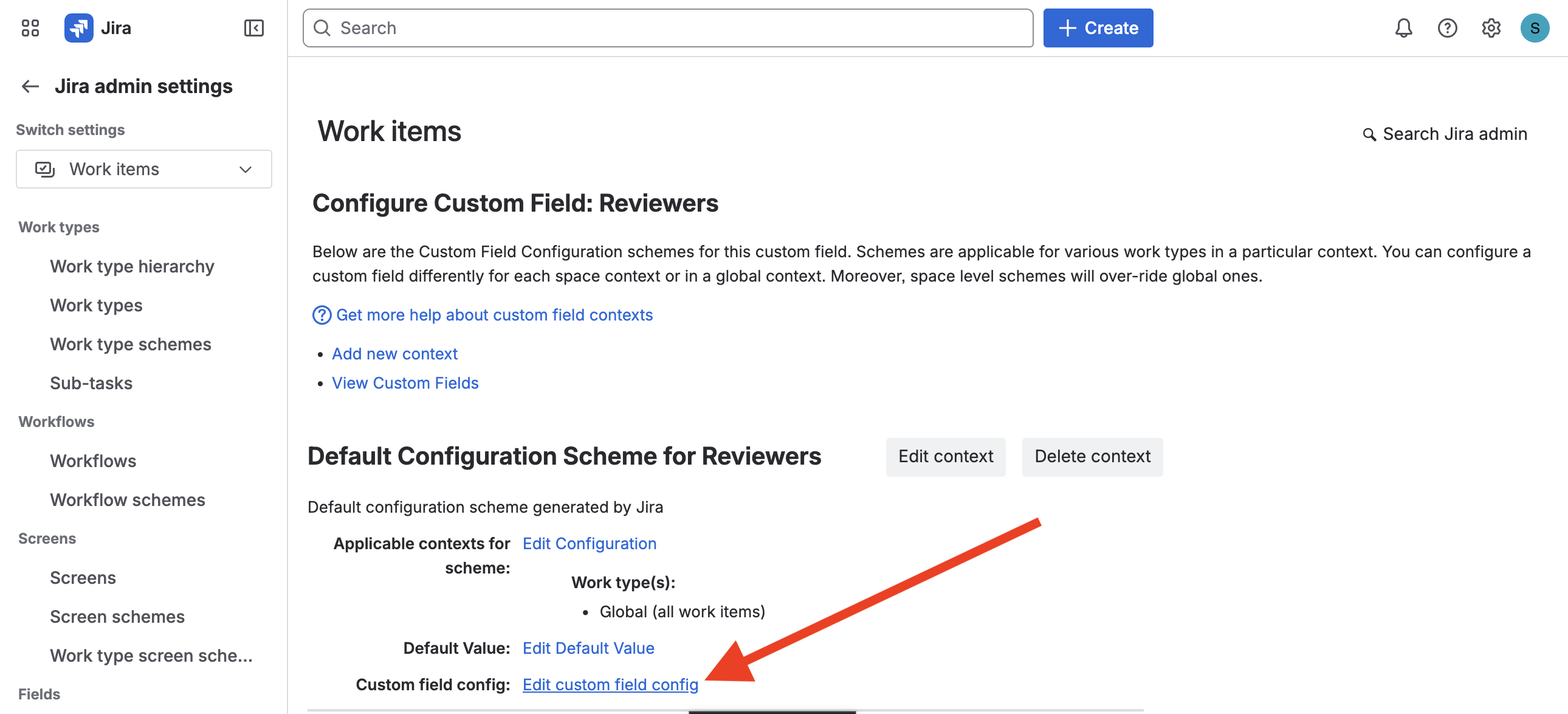
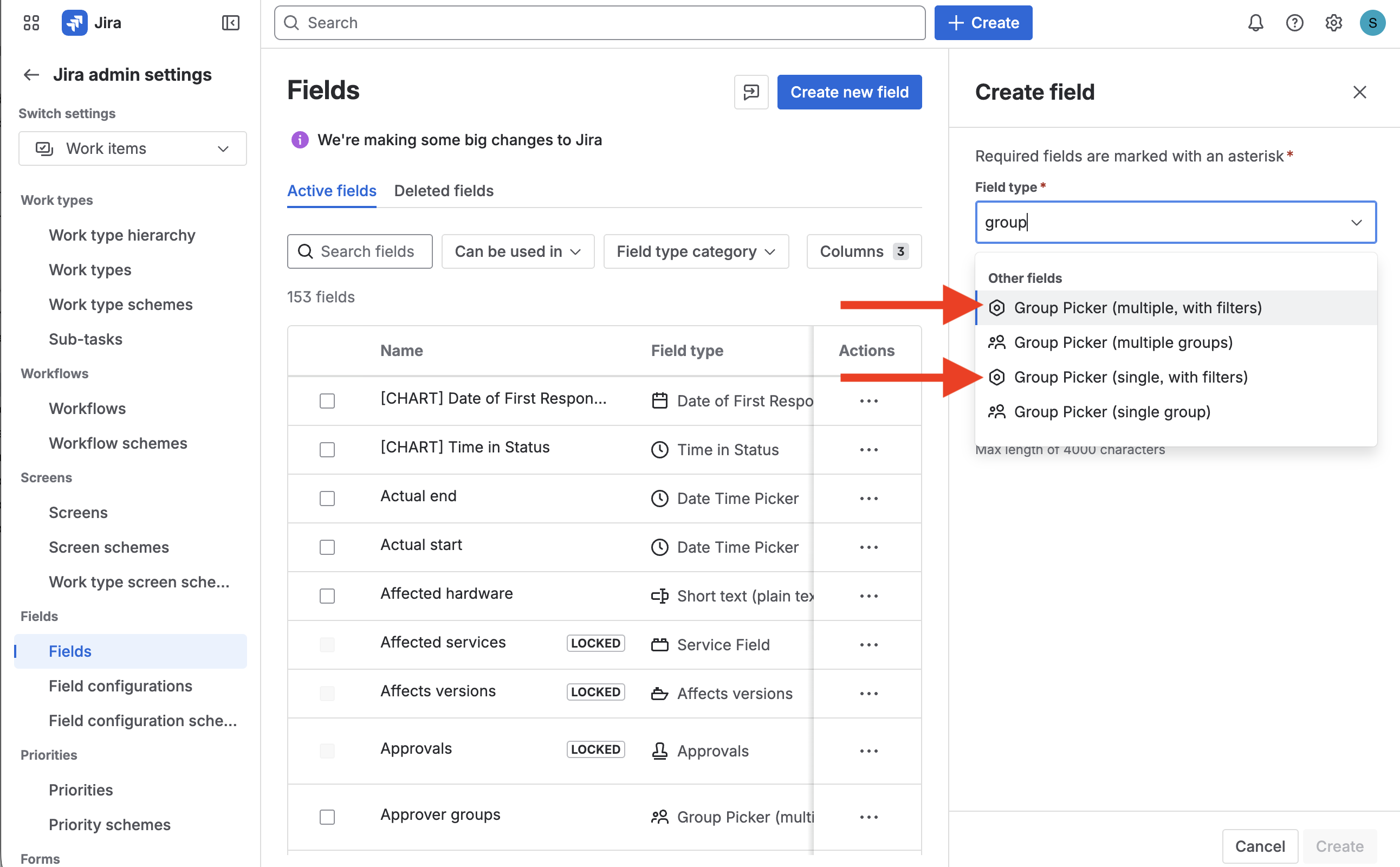
The Filtered Group Picker app provides two custom field types: (1) Group Picker (multiple, with filters), and (2) Group Picker (single, with filters). Create a custom field with one of these types, and then navigate to the Custom field config page.
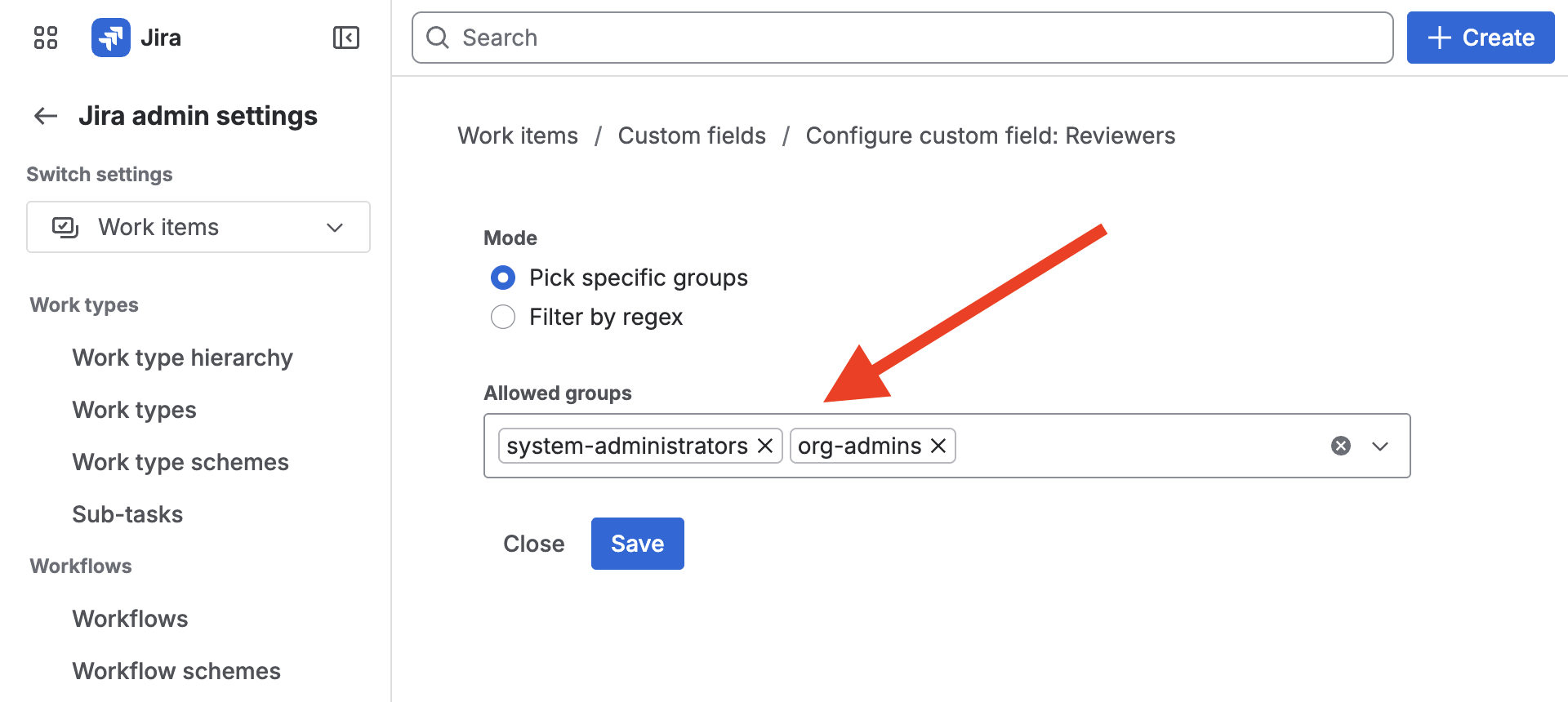
You can either choose exactly which groups you’d like to appear in your group picker dropdown (e.g. system-administrators, and org-admins in the following example):
Or, you can configure a custom regular expression to match specific groups by patterns in their names. You could, for example, match groups whose name starts/ends with specific characters. In the following example, we just configure a simple regex that matches either system-administrators or org-admins:
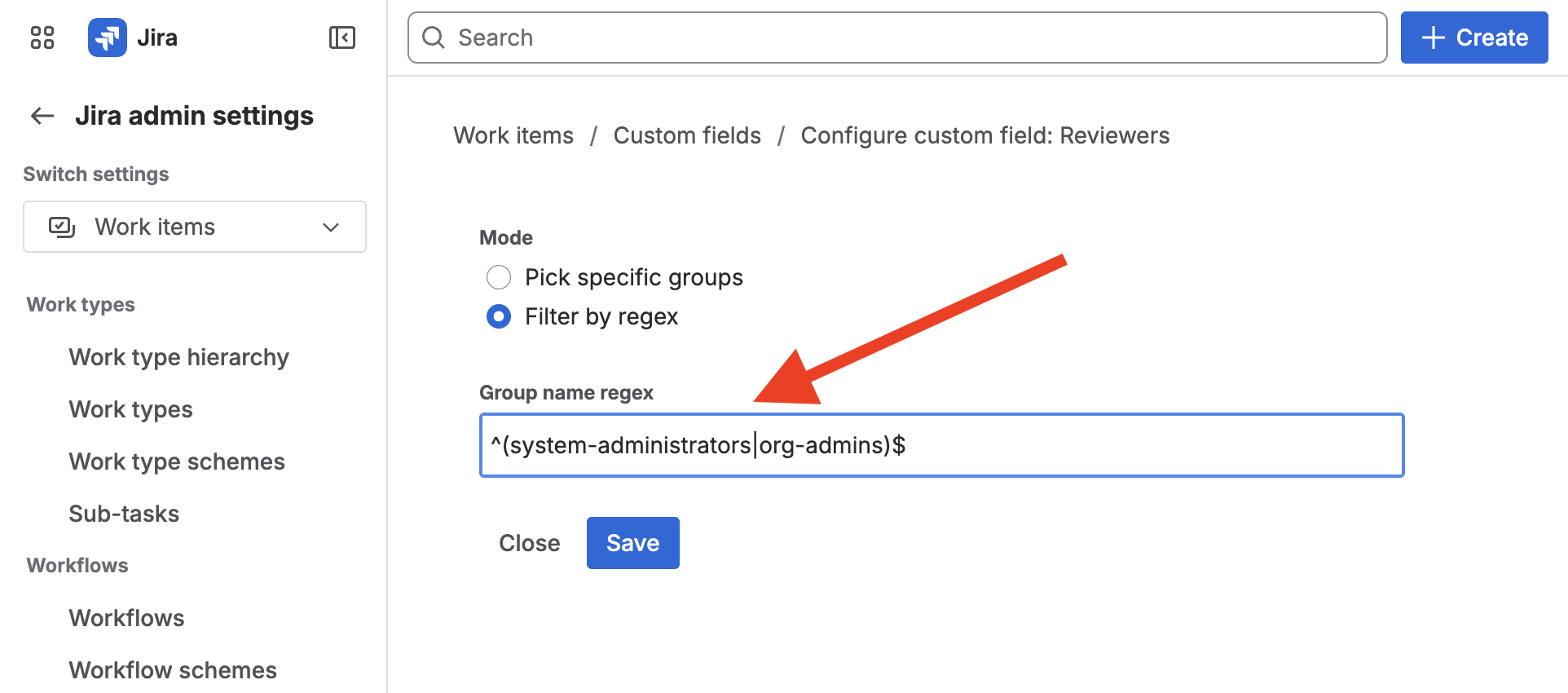
You can write more complex regular expressions to match custom group sets by patterns in their names.
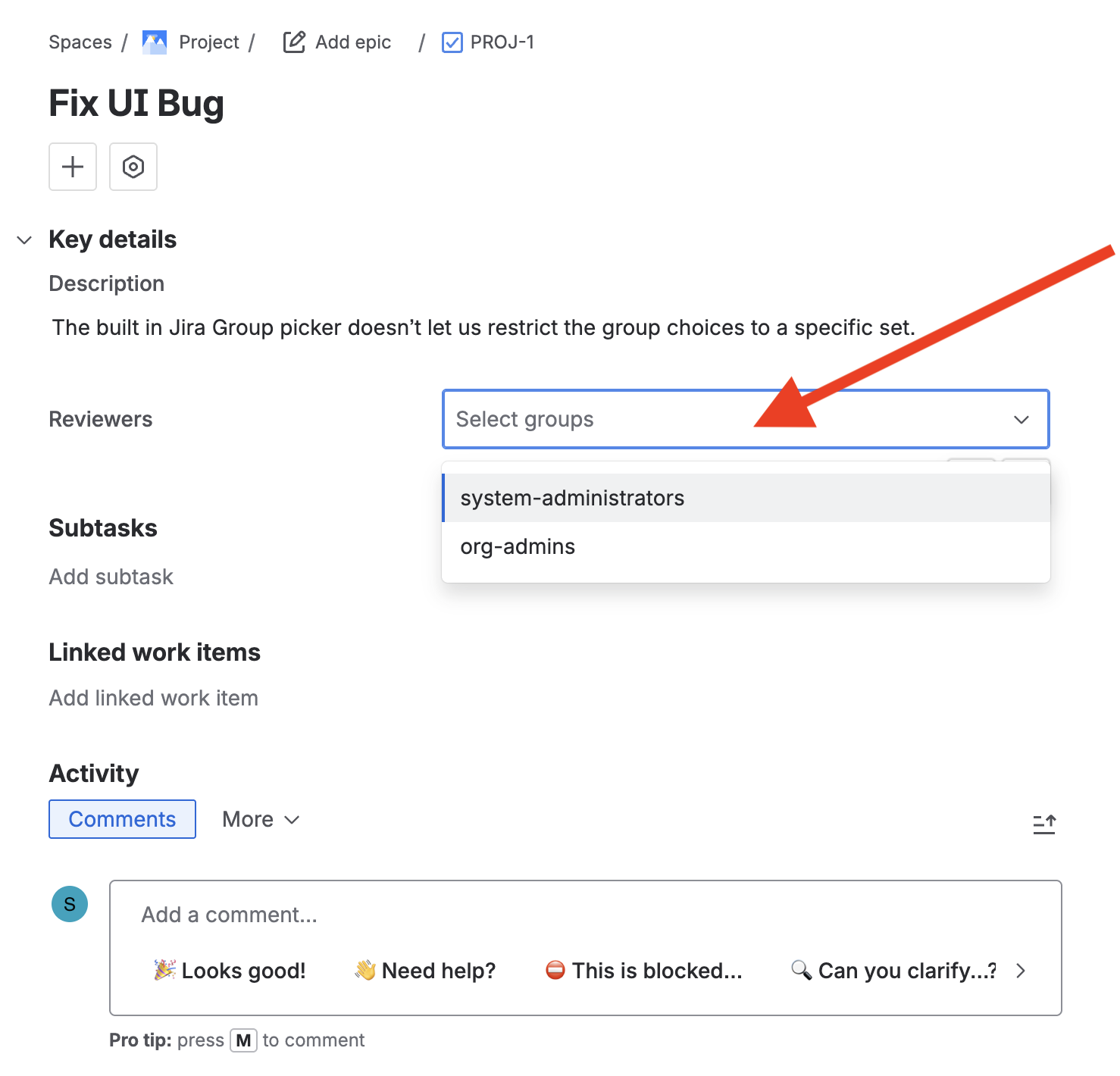
Finally, you’ll now have a custom filtered group picker field that limits the groups that appear in the drop down to a specific set:
How do I create a new custom Filtered Group Picker field?
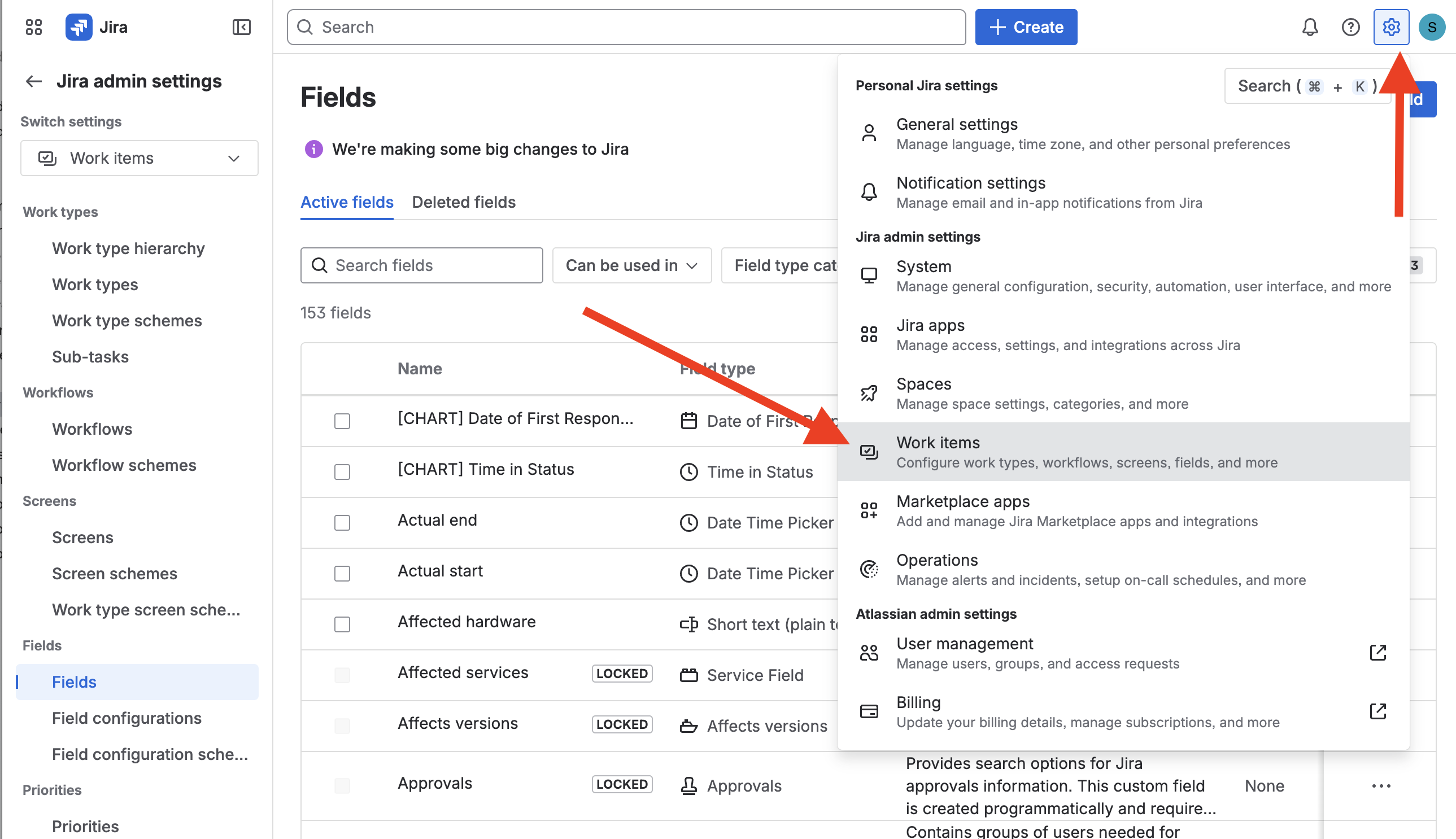
1) First, click the gear icon in the top right corner and select Work items:
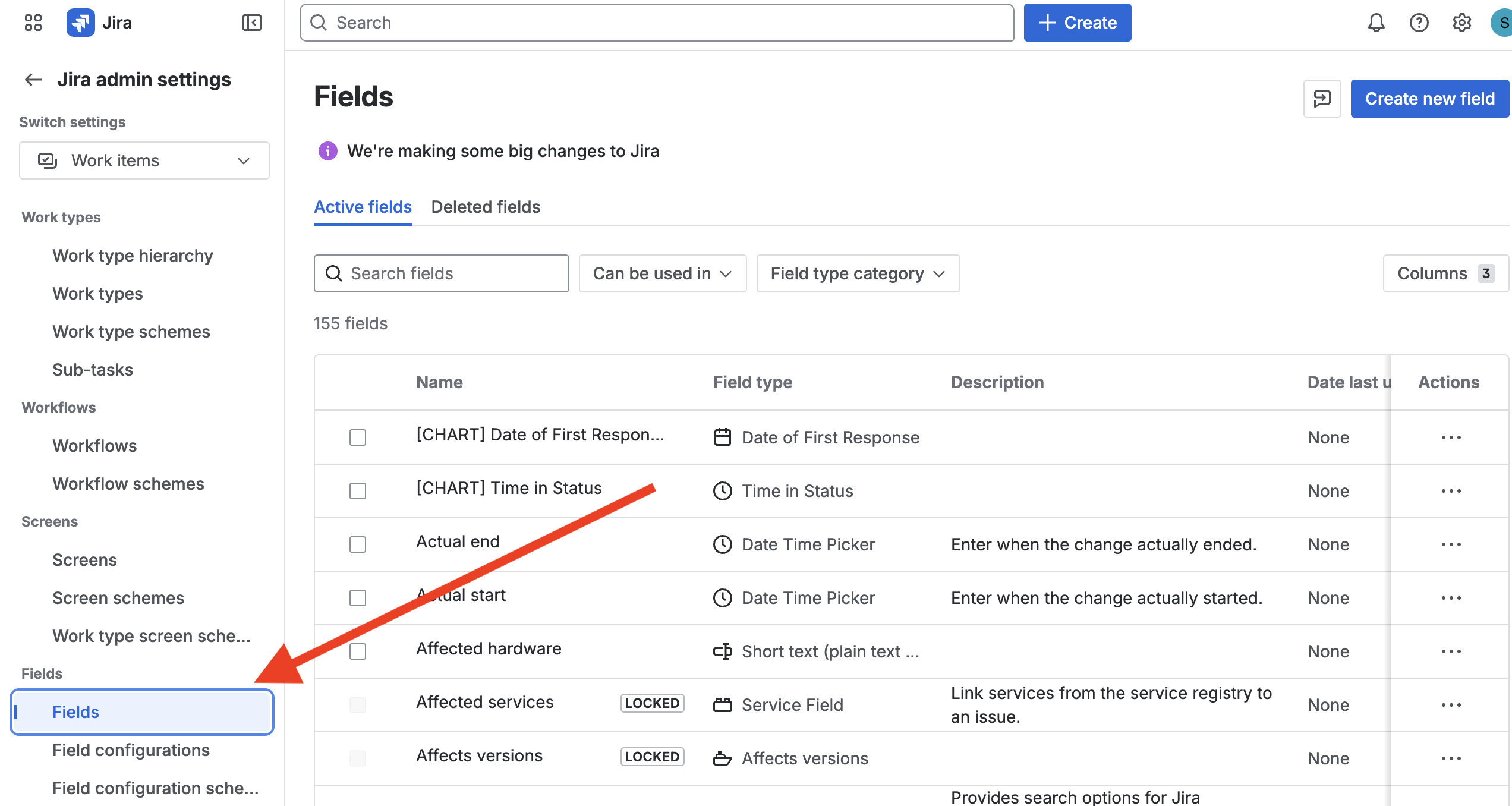
2) Click the Fields link on the left hand side of the screen:
3) Click Create new Field in the right hand side and select either Group Picker (multiple, with filters), or Group Picker (single, with filters):
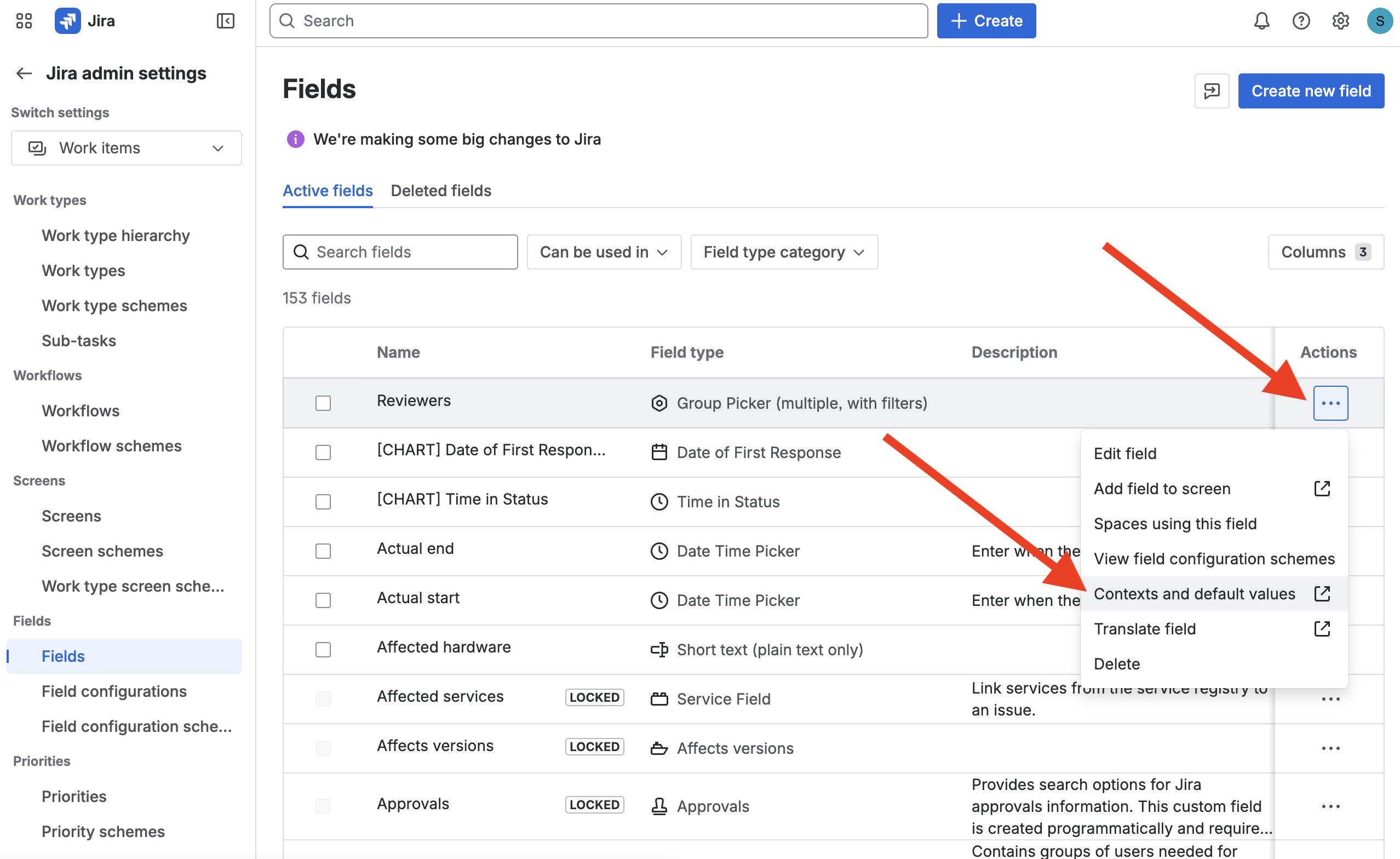
4) Click the three dots ... menu item on your newly created field and select Contexts and default values:
5) Click the Edit custom field config link:
6) Finally, and you’ll be able to configure your filtered group picker so that it restricts itself to a specfic set of groups (either by exact match, or with a regular expression).
e.g. Choosing specific groups:
e.g. Creating a custom regular expression:
7) Now - on your issues - you’ll be able to add a group picker field that limits itself to only the specific set of groups you configured:
How can I request a discount?
If you’d like to request a discount, contact us through the support portal and we’ll work together to get you set up.
How can I get support?
Send us a message through the support portal.
Additional Links
- Support portal
- Privacy Policy
- End User License Agreement
- Filtered Group Picker on Atlassian Marketplace